App marketing · App store · Video
How to make an app promo video from screenshots
No screen recording, no editor? How to turn your app's screenshots into a short promo video for launch posts, ads and app store listings, and the rules to know.
· 3 min read
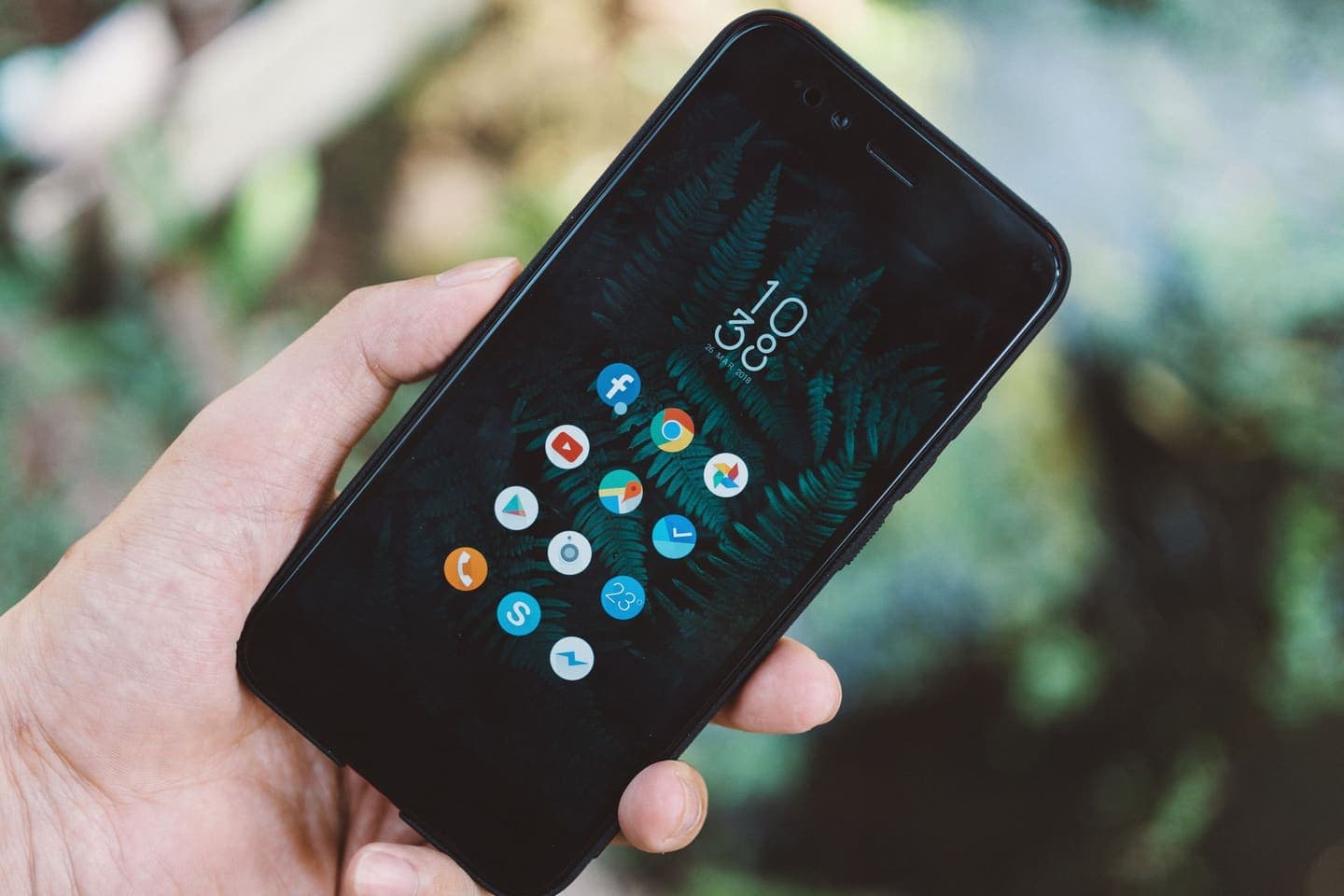
You've built an app, and every place you want to launch it asks for video: Product Hunt, TikTok, X, LinkedIn, your landing page, your ads. What you have is a folder of screenshots. Making a promo video usually means screen recording, editing, writing a script and adding captions, which is a day you'd rather spend on the app.
Here's how to turn the screenshots you already have into a short promo video, what to put in it, and what each app store's rules say about preview videos.
What a good app promo video does
- Shows the problem in the first second: the thing your user is stuck on.
- Shows the app solving it, one screen at a time.
- Uses real screens, so what people see is what they'll get.
- Says it in captions, because most people watch with the sound off.
- Ends on one clear step: download, sign up or join the waitlist.
How to make one from screenshots
In Clara, you upload your screenshots and write a sentence about each screen. Clara writes a script from what you wrote, puts the screens on devices, adds captions and builds a short vertical reel. The script only says what your descriptions and screens support, so it won't invent features you don't have.
- Pick the four to eight screens that tell the story, in the order a new user would see them.
- Write one plain sentence for each: what it shows and why it matters.
- Let Clara write the script and compose the shots, then edit anything and export.
Writing the screen descriptions
“Dashboard screen.”
“Settings.”
“AI feature.”
“See every bill due this month on one screen.”
“Turn on reminders so you never pay a late fee.”
“Snap a receipt and it's filed under the right category.”
Lead with what the user gets, not what the screen is called. Those sentences become your script and your captions, so plain words work best.
What the app stores allow
Each store has its own rules for the video on your listing, and they change, so check the current guidance before you upload.
- Apple App Store: app previews are 15 to 30 seconds, you can add up to three per device size and language, and Apple asks for footage captured from the app on the device. For that slot, a screen recording is the safe choice.
- Google Play: the preview video is a YouTube link to a single video. It should show the real app experience.
- Everywhere else, such as Product Hunt, social media, ads and your website, a screenshot-based reel with device shots and captions is exactly what works.
Where to post it
- Launch day: Product Hunt, X, LinkedIn, Reddit (where the community allows it) and Indie Hackers.
- TikTok and Reels, where short demos of a useful app can find users you'd never reach with a link.
- The top of your landing page, where a few seconds of the app working explains it faster than a paragraph.
- App install ads, where you can test several versions with different opening screens.
Mistakes to avoid
- Opening on your logo. Open on the problem or the most useful screen.
- Showing every feature. Pick the one or two that make people download.
- Screens with placeholder data such as “Lorem ipsum” or “Test User”. Use realistic examples.
- Promising what the app doesn't do yet. It's the quickest route to one-star reviews.
Turn your next take into a video people finish.
Captions timed to every word, a pinned hook and a tighter edit, all from the footage you already have.
Start free